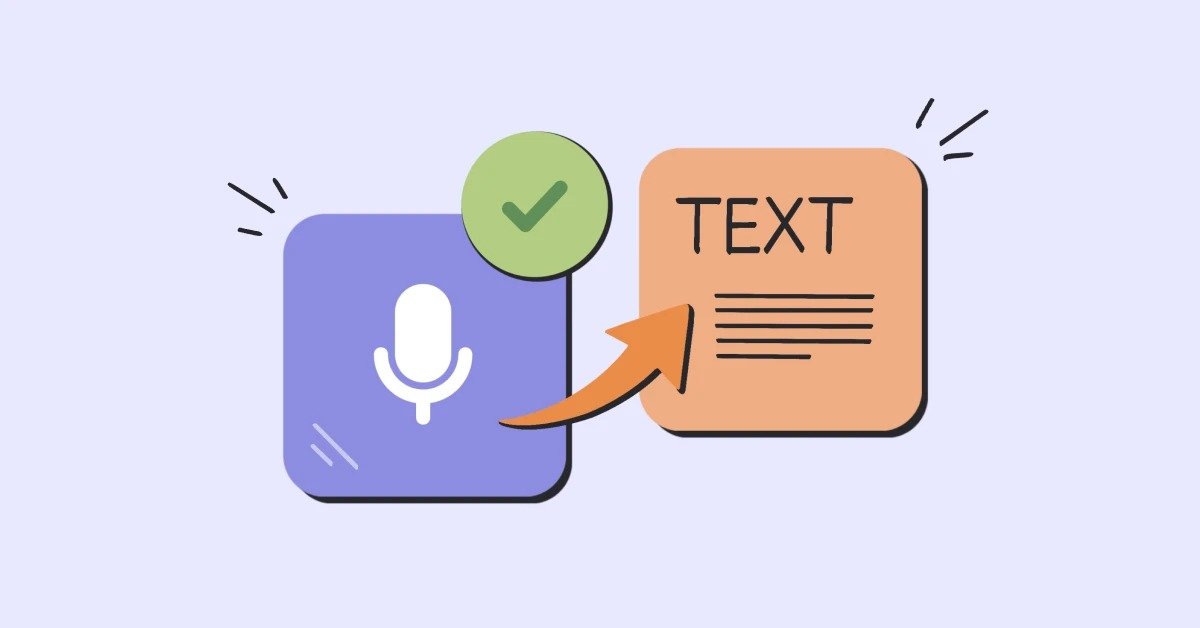
For Apple users, when taking meeting notes, the Voice Memo app on iPhone is the preferred tool for capturing sudden inspirations. However, when you sit in front of your Mac and turn these recordings into a polished file, the workflow often gets interrupted.
In 2026, manually typing audio every few seconds by pressing the pause button will be a productivity nightmare.
The secret to a professional workflow is mastering the audio to text sync between your devices. By choosing the right tools, you can ensure your spoken ideas flow effortlessly from your pocket to your desktop.
The Ultimate Strategy for iPhone-to-Mac Audio and Text Syncing
Apple ecosystem users must convert audio to text to save valuable time. This strategic habit ensures your best ideas become searchable digital assets. You can easily organize thoughts into a clear and professional format.
Content syncing is the ultimate key to growing your global brand. Use Vomo.ai to bridge the gap between your mobile recording and desktop. This efficient workflow helps you reach a much wider digital audience.
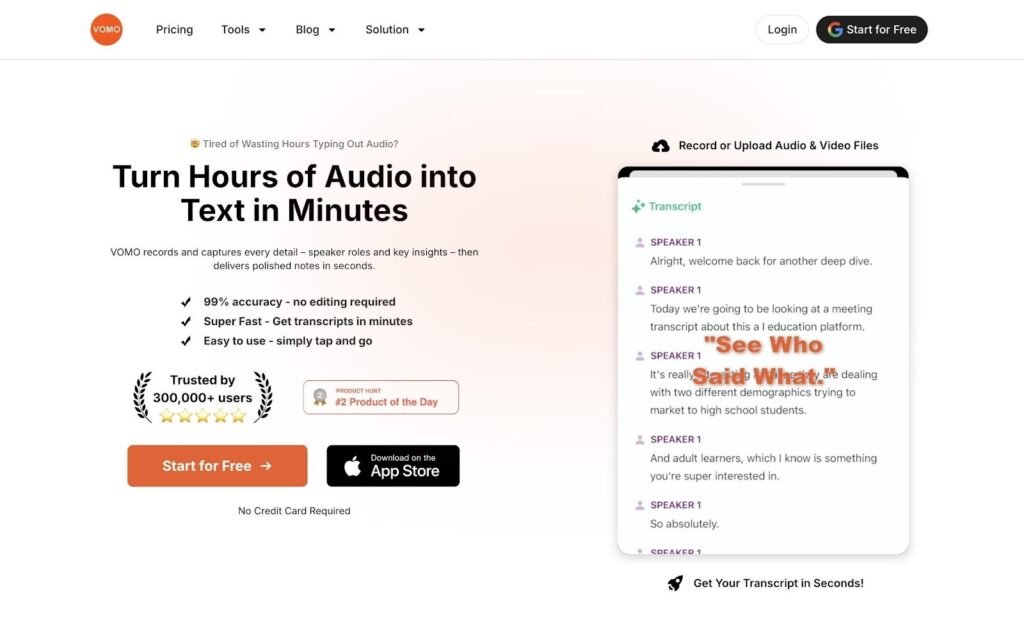
iCloud typically handles the how to sync audio to text between iphone and mac basics. However, professional creators often require more speed and much higher accuracy. Advanced AI tools provide the stability that native Apple syncing sometimes lacks.
- iOS 18 Native Sync: Use iCloud to mirror Voice Memos and view transcripts directly on your Mac.
- Universal Clipboard: Copy transcribed text on your iPhone and instantly paste it into your Mac’s editor.
- VOMO Cloud Synergy: Achieve 99% accuracy with zero-click synchronization across all your Apple devices.
Step-by-Step: How to Sync Audio to Text Between iPhone and Mac Effortlessly
Step 1: Capture on iPhone
Record your inspiration using the VOMO iOS app or upload your existing Apple Voice Memos. The system handles the M4A format perfectly and automatically generates a compelling title to keep your library organized. Your recording is instantly prepared for high-fidelity conversion.
- Mobile Freedom: Record on the go without worrying about manual file management later.
- Native Optimization: Specifically designed to handle the iPhone’s default high-quality audio formats.
Step 2: Zero-Click Cloud Sync
This is the “Secret” that breaks the device barrier without needing AirDrop or cables. VOMO’s architecture is fully cross-platform, meaning your audio and transcription data sync in the background automatically. There is no need to click “Send” or wait for slow iCloud uploads.
- Instant Availability: Your data moves to the cloud the moment the recording ends.
- Unlimited Storage: Move beyond the limits of free iCloud plans with VOMO’s dedicated cloud space.
Step 3: Review and Edit on Mac
Open the VOMO Web platform in your Mac’s browser to find your perfectly transcribed text waiting for you. You can take advantage of the larger screen and keyboard to perform deep editing or formatting. The transition from mobile “voice” to desktop “text” is completely frictionless.
- No Installation Required: Keep your Mac clean by using the powerful web-based AI editor.
- High Accuracy: Benefit from a 99% precision rate that handles real-world background noise effectively.
Step 4: Redesign with “Ask AI”
Once your text is synced to the Mac, use the built-in Ask AI feature to transform the raw transcript. You can command the AI to “extract action items” or “summarize this meeting into a project plan” in seconds. This turns your iPhone recording into a professional Mac-ready deliverable.
- Smart Assistant: Use GPT-5.2 powered insights to refine your creative or professional voice.
- One-Click Export: Save your final results as DOCX, PDF, or SRT for immediate distribution.
Pro Tips: Maximizing Sync Speed and Transcription Quality
Environment and Connectivity Guide
To ensure your how to sync audio to text between iphone and mac workflow remains flawless, always check your iCloud settings. Ensure both devices are on the same Apple ID and connected to high-speed Wi-Fi for larger files. For the best transcription, record in a quiet room to minimize the “messy” audio cleanup required later.
- Check ID Settings: Verify that “Voice Memos” is toggled ON in your iCloud settings on both ends.
- Use AirDrop for Bulk: If you have massive raw files, AirDrop remains a fast offline backup for immediate transfer.
The Result of a Seamless Workflow
Correct application of these sync tips leads to a massive boost in content output and research speed. Creators report saving up to 10 hours a week by eliminating the “AirDrop and type” routine. You gain a searchable, organized database that lives wherever you work.
- 90% Time Saved: Transition from raw thoughts to finished scripts in a fraction of the time.
- Better Organization: Never lose a “Voice Memo” again once it is converted into searchable text.
Use Cases: Bridging the Device Gap Like a Pro
- The Mobile Journalist: Records an interview on an iPhone at a busy event. By the time they open their Mac at the hotel, the full audio to text transcript is ready for a breaking news story.
- The Creative Entrepreneur: Dictates a new business strategy while driving. On the Mac, they use VOMO’s “Ask AI” to turn that verbal brainstorm into a 10-page pitch deck instantly.
- The Academic Researcher: Captures field notes on their iPhone. They use the how to sync audio to text between iphone and mac workflow to organize hours of data into a thesis draft on their desktop.
FAQ: Solving Common Syncing and Transcription Hurdles
Q: Why isn’t my iPhone Voice Memo showing up on my Mac? A: Check your iCloud settings on both devices; ensure “Voice Memos” is enabled and you are using the same Apple ID.
Q: Can Vomo.ai handle the iPhone’s default M4A format? A: Yes. VOMO is optimized for the Apple ecosystem and can seamlessly convert M4A and MOV files into accurate text.
Q: What if I have a 2-hour recording? Will the sync fail? A: Unlike email or basic cloud apps, VOMO handles long recordings without limits, ensuring your data syncs safely without crashing.
Q: How do I get the text from my iPhone to my Mac’s Word document? A: Use the “Universal Clipboard” to copy on iPhone and paste on Mac, or simply log into the VOMO Web app on your Mac to copy directly.
Conclusion: Your Workflow, Now Truly Seamless
Mastering the audio to text transition between your iPhone and Mac is the ultimate productivity hack for 2026. You no longer have to suffer through the “AirDrop, wait, and type” cycle that kills creative momentum. By following this how to sync audio to text between iphone and mac guide, you turn your devices into a unified production powerhouse.
Stop treating your iPhone and Mac like isolated islands. Try Vomo.ai for Free Today and use it to witness the magic of “record on mobile, edit on desktop” in real-time. Experience the most advanced Apple-friendly transcription tool on the market now.
True cross-platform collaboration should not make you feel the existence of the action of “transmission”. Splitting recording and typing into two separate islands is a huge waste of time and creativity.
Pick up your iPhone right now, download the iOS App of Vomo.ai and casually record a one-minute thought. Then, put down your phone and open the VOMO web version on your Mac. Witness for yourself the stunning experience that a beautifully formatted and well-focused editable text is already ready for you on the computer screen before you even sit firmly in the chair.