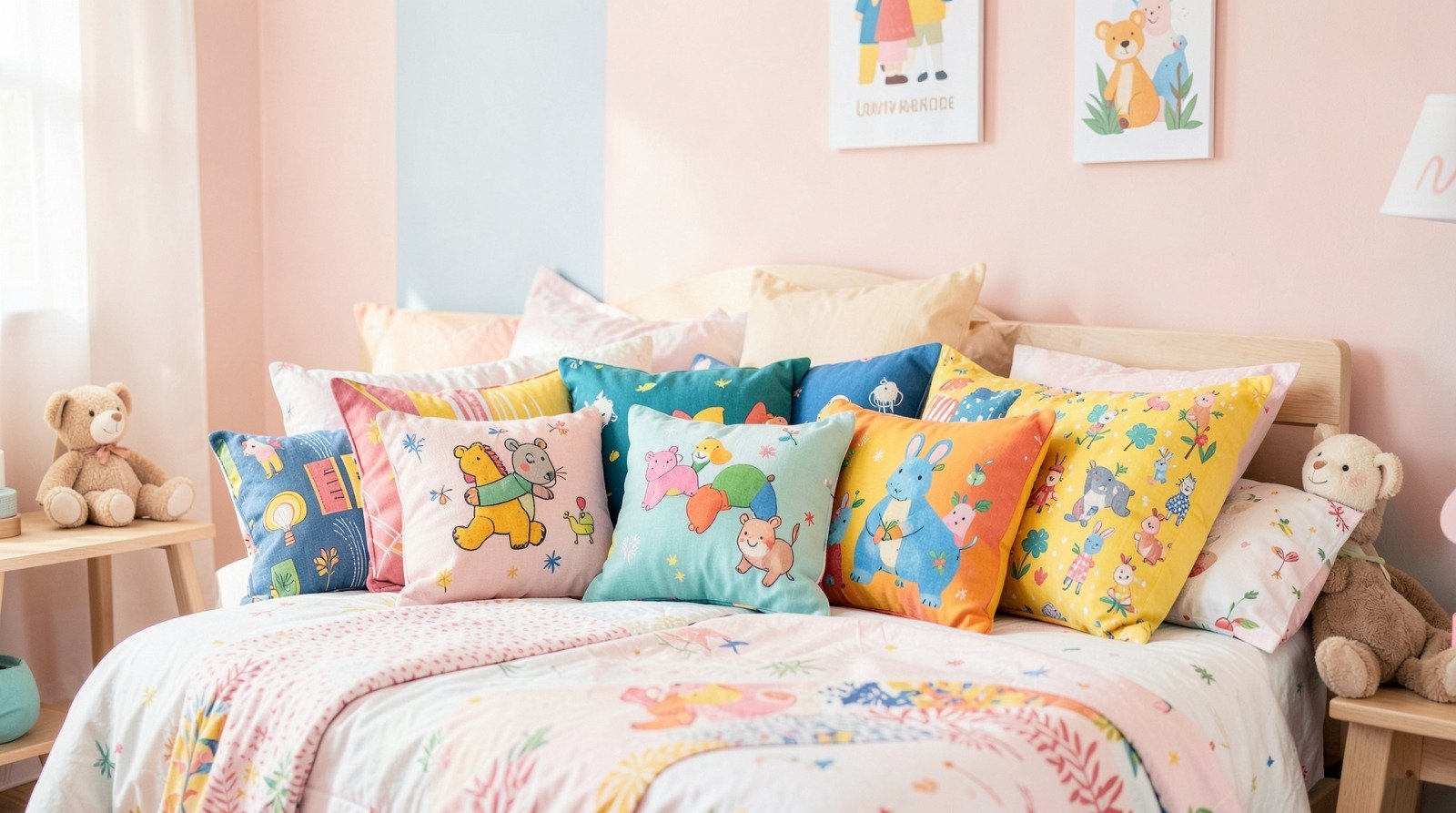
A practical, beginner-friendly tutorial explaining how to design and order personalized pillows for a child’s bedroom without prior design experience.
Introduction
Personalized pillows are one of the simplest ways to refresh a child’s bedroom without repainting walls or replacing furniture. A custom pillow can introduce a name, favorite color palette, animal theme, or playful message while remaining flexible enough to update as interests change.
This guide is written for parents, caregivers, and gift-givers who want a clear, structured workflow rather than design theory. Tools in the Custom Pillow Projects category now rely on templates, alignment guides, and built-in export settings that reduce the need for advanced graphic skills.
An accessible place to begin is to try this pillow designer from Adobe Express, which provides ready-made layouts and guided editing. While Adobe Express can handle most of the design process, other tools may help with specific steps such as file compression, shipping coordination, or insert sourcing.
The steps below focus on decisions and checkpoints that matter most for print clarity, sizing accuracy, and overall durability.
Step-by-Step How-To Guide for Using Custom Pillow Projects
Step 1: Start with a Structured Template Layout
Goal
Create a balanced pillow design quickly without building a layout from scratch.
How to do it
- Open try this pillow designer from Adobe Express.
- Select the correct pillow size and orientation.
- Choose a template with predefined text and image zones.
- Replace placeholder content with your child’s name or short phrase.
- Adjust background colors to match the bedroom theme.
- Preview the design in full view before moving forward.
What to watch for
- Avoid placing important text near the edges.
- Keep font choices simple and readable.
- Do not overload the design with too many graphics.
- Check color contrast for legibility.
Tool notes
If you need to compress large image files before uploading, a tool like TinyPNG can reduce file size without visibly lowering quality.
Step 2: Choose Your Custom Pillows File Formats
Goal
Export a file that prints cleanly and meets manufacturer specifications.
How to do it
- Confirm preferred format (PNG, JPG, or PDF) with your print provider.
- Export from Adobe Express at the highest resolution setting.
- Maintain RGB color unless the printer specifically requires CMYK.
- Save an editable version for future updates.
- Verify final pixel dimensions match the pillow size.
What to watch for
- Avoid low-resolution exports.
- Do not use overly compressed JPG files.
- Ensure fonts remain embedded in PDF format.
- Check file size limits on the ordering platform.
Tool notes
If you need to convert between formats (for example, PNG to PDF), a utility such as CloudConvert can assist without altering design layout.
Step 3: Review the Custom Pillows File Requirements
Goal
Confirm that the design meets technical print standards before ordering.
How to do it
- Verify 300 DPI resolution for print clarity.
- Check required bleed margins if the design reaches the edge.
- Confirm safe zones for text placement.
- Upload the file into the printer’s preview tool.
- Zoom in to inspect fine details.
What to watch for
- Pixelation warnings in preview mode.
- Automatic cropping adjustments.
- Text placed too close to seams.
- Color differences in on-screen previews.
Tool notes
You can use an online DPI checker like ImageResizer to confirm final image resolution before upload.
Step 4: Compare Custom Pillows Fabric Options
Goal
Select fabric that balances comfort, durability, and color accuracy.
How to do it
- Review fabric descriptions on the printer’s site.
- Compare cotton for softness and breathability.
- Evaluate polyester blends for vibrant color retention.
- Consider velvet for decorative pillows rather than daily use.
- Choose linen for a textured, natural look.
What to watch for
- Some fabrics slightly mute bright colors.
- Velvet may show pressure marks.
- Linen can wrinkle easily.
- Polyester may feel less breathable.
Tool notes
If ordering inserts separately, retailers such as IKEA can provide size-matched pillow inserts at reasonable cost.
Step 5: Add Personalization Without Overcrowding
Goal
Make the pillow meaningful while keeping the layout clean.
How to do it
- Include first name or nickname only.
- Add one central graphic or theme element.
- Use short, readable phrases.
- Keep font count to one or two styles.
- Maintain consistent color harmony.
What to watch for
- Avoid copyrighted characters unless licensed.
- Double-check spelling.
- Ensure decorative fonts remain legible.
- Keep age-appropriate visuals.
Tool notes
If sourcing additional graphics, platforms like Unsplash offer royalty-free imagery suitable for custom décor.
Step 6: Preview Edges, Seams, and Safe Areas
Goal
Prevent trimming or distortion during sewing and stuffing.
How to do it
- Activate alignment guides inside Adobe Express.
- Keep important text at least 0.5 inches from edges.
- Avoid placing faces or critical elements at corners.
- Use mockup preview tools if available.
- Recheck layout before exporting final file.
What to watch for
- Design elements cut off at seams.
- Overly tight cropping.
- Pattern misalignment at edges.
- Distortion in preview renderings.
Tool notes
Tools like Block Posters allow you to preview dimensions at print size before submission.
Step 7: Coordinate Inserts, Delivery, and Styling
Goal
Ensure the finished pillow fits properly and complements the room.
How to do it
- Confirm insert dimensions match the cover.
- Order inserts slightly larger for a fuller look.
- Plan shipping timelines before room updates.
- Coordinate pillow colors with bedding or wall décor.
- Track delivery to avoid delays.
What to watch for
- Mismatched insert sizes.
- Overstuffing causing seam strain.
- Color clashes with existing décor.
- Seasonal shipping delays.
Tool notes
For tracking shipments across vendors, apps like AfterShip can consolidate tracking numbers in one place.
Common Workflow Variations
Photo-Based Keepsake Pillow
Use a high-resolution photo and minimal text. Keep image contrast strong to prevent fabric fade.
Pattern-Based Theme Pillow
Focus on repeating patterns with a small personalization tag for a cohesive bedroom look.
Birthday or Milestone Gift
Use bold typography highlighting age or achievement with a simple background color.
Seasonal Swap Covers
Design neutral inserts and create multiple themed covers for easy updates throughout the year.
Checklists
Before You Start Checklist
- High-resolution images ready (300 DPI recommended)
- Correct pillow dimensions confirmed
- Name spelling verified
- Printer file requirements reviewed
- Fabric type selected
- Budget and timeline confirmed
- Backup editable file saved
Pre-Export / Pre-Order Checklist
- Resolution verified at 300 DPI
- Bleed and safe zones reviewed
- Spelling double-checked
- Fonts readable at final size
- Colors previewed against light background
- File format matches printer requirements
- Editable source file saved
Common Issues and Fixes
Low-Resolution Images
Replace with higher-quality images or reduce scaling size.
Text Too Close to Edges
Move text inward to prevent seam trimming.
Unexpected Color Changes
Slightly increase contrast before export to compensate for fabric absorption.
Cropping Surprises
Recheck canvas size and bleed margins before ordering.
Insert Size Mismatch
Measure both insert and cover dimensions before checkout.
How To Use Custom Pillow Projects: FAQs
Is a template-based workflow best for beginners?
Yes. Templates minimize layout errors and maintain balanced spacing.
Should the design match exact pillow size before uploading?
Matching dimensions prevents scaling distortion and cropping.
Is integrated print ordering easier than exporting separately?
Integrated workflows reduce technical steps, though exporting provides flexibility.
What font style works best for kids’ pillows?
Simple sans-serif fonts maintain clarity and print cleanly.
Do I need advanced design skills to create a polished result?
Most modern Custom Pillow Projects tools rely on structured templates and guided editing, making professional results achievable without design training.