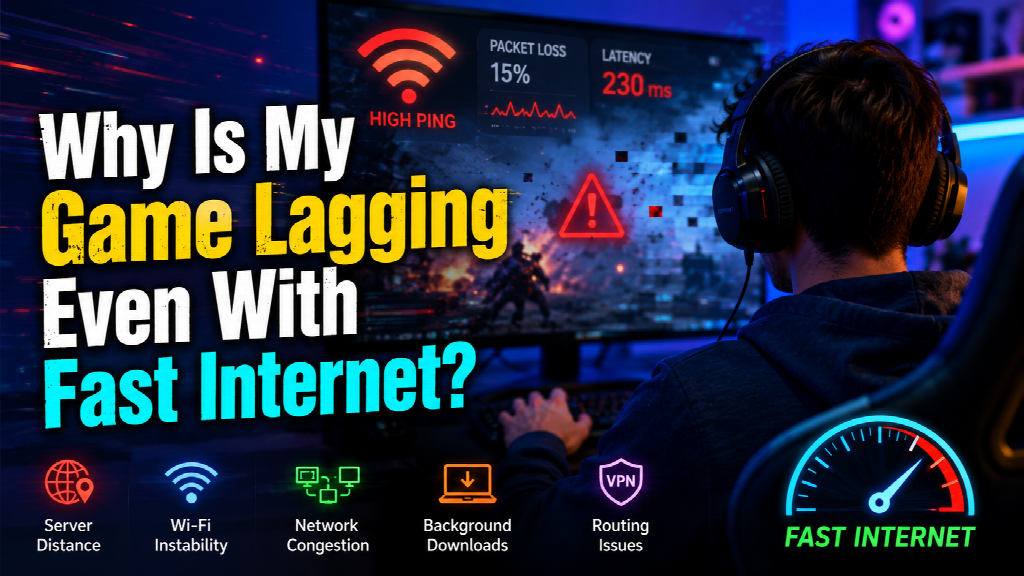
A fast internet plan does not guarantee a smooth gaming experience. You may have hundreds of Mbps available and still deal with delayed actions, sudden freezes, teleporting characters, or frequent disconnects.
That is because online gaming depends less on raw download speed and more on factors such as ping, packet loss, network stability, server distance, and the route your data takes. Even a small problem in one of these areas can make a fast connection feel frustratingly slow.
This guide explains why games can lag despite strong speed-test results, how to identify the real cause, and which fixes are worth trying. You will also learn when testing a different connection route with a free VPN may help—and when it may make the problem worse.
Why Fast Internet Can Still Feel Slow in Games
The speed advertised by your internet provider usually refers to bandwidth. It tells you how much data your connection can transfer within a certain period.
More bandwidth helps when you download a large game, install an update, stream a high-resolution video, or use several devices at once. However, most online games do not need a huge amount of bandwidth during a match.
What they need is a fast and consistent exchange of small amounts of data.
When you press a button, your device sends that action to the game server. The server processes it and sends an updated game state back to you. If that exchange is delayed or interrupted, the game can feel slow even though your download speed is excellent.
Four connection metrics have a bigger impact on online gaming than your maximum Mbps:
| Metric | What It Measures | Common Gaming Symptom |
| Ping | How long data takes to travel to the server and back | Delayed movements or actions |
| Jitter | How much your ping changes over time | Inconsistent or jerky gameplay |
| Packet loss | How much data fails to reach its destination | Freezing, teleporting, or disconnecting |
| Bandwidth | How much data your connection can carry | Slow downloads or problems when many devices are active |
A connection with moderate bandwidth, low ping, and no packet loss can provide a better gaming experience than a much faster but unstable connection.
Can a Free VPN Help Reduce Gaming Lag?
A VPN is not automatically a gaming accelerator. In many cases, adding another server between you and the game will slightly increase your ping.
However, there are situations in which a VPN can improve the route your data takes.
Your internet provider does not always send gaming traffic along the shortest or least congested path. Data may travel through several unnecessary network points before reaching the game server. This is known as inefficient routing.
Connecting through a nearby free VPN server gives your traffic a different route. If that new path avoids a congested or poorly performing part of your ISP’s network, your connection may become more stable.
Think of it as taking a different road to the same destination. The alternative road is not guaranteed to be shorter, but it may help you avoid a traffic jam.
When a Free VPN Might Help
Testing a free VPN may be useful when:
- Your game has higher ping than other online services.
- The problem mainly affects servers in another region.
- Your connection gets worse at predictable times.
- Other players in your area use the same game server without problems.
- Your ISP appears to be sending traffic through a long or unstable route.
- You want to compare network routes before paying for another service.
A VPN is particularly worth testing when you play with friends overseas. In this situation, the closest server to you may not be the server used by the group. A VPN location near the game server could provide a more direct path, although the result depends on the provider’s network.
When a Free VPN Can Make Lag Worse
A VPN can also increase latency. This is more likely to happen when:
- The VPN server is far from both you and the game server.
- The server is overloaded with free users.
- The VPN connection is unstable.
- You are automatically connected to an unsuitable location.
- Your original ISP route is already efficient.
- The VPN adds more distance than it removes.
For that reason, you should treat a free VPN as a testing tool rather than a guaranteed fix.
How to Test It Properly
First, play without a VPN and record your average ping. Pay attention to sudden spikes, packet loss, and disconnects rather than only looking at one number.
Next, connect to a VPN server near the game server. Reopen the game and test the same mode, map, or region under similar conditions.
Compare:
- Average ping
- Ping fluctuations
- Packet loss
- Connection stability
- Frequency of freezes or disconnects
If the game becomes more stable, poor ISP routing may have contributed to the problem. If your ping rises or the connection feels worse, disconnect the VPN and continue with the other fixes below.
Can a VPN Chrome Extension Help With Gaming?
A browser extension and a full VPN app do not usually affect the same traffic.
A full VPN application can route traffic from games and other applications through the VPN server. A Chrome extension generally handles traffic inside the browser only.
That means a VPN extension for Chrome is unlikely to change the connection used by a separately installed PC game.
However, it may still be useful when you:
- Play browser-based games.
- Use a cloud gaming service through Chrome.
- Access a game’s website or account portal.
- Troubleshoot a region-specific login page.
- Browse on public Wi-Fi before launching a game.
- Want to test another browser location without changing every app.
For browser gaming or cloud gaming, test the extension using the same method as a full VPN: record the original performance, connect to a sensible server location, and compare the results.
For traditional desktop games, use a device-level VPN application instead of assuming the browser extension covers the game client.
Eight Reasons Your Game Is Lagging Despite Fast Internet
Gaming lag rarely has a single universal cause. The following are the most common issues to investigate.
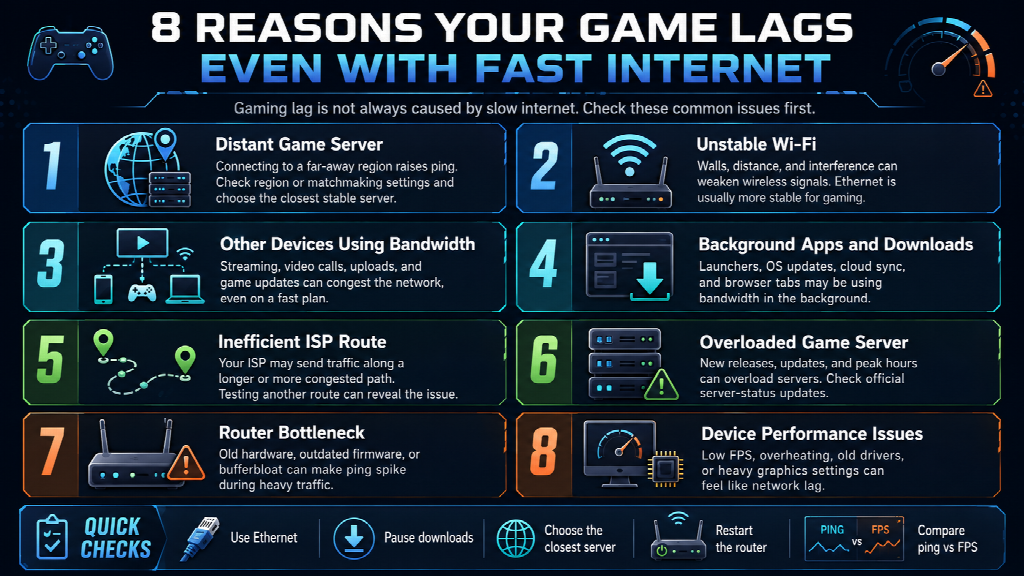
1. You Are Connected to a Distant Game Server
Physical distance matters. Data cannot travel instantly, so connecting to a server on another continent normally produces higher latency than connecting to one in your own country.
Many games automatically select a region, but that selection can be wrong. The game may place you on a distant server because your preferred region is busy, your account is registered elsewhere, or the party leader is in another country.
Check the region or matchmaking settings before changing anything else. When possible, choose the closest server that still allows you to play with your group.
You may have to accept higher ping when playing with overseas friends. The goal in that case is not necessarily to achieve local-server latency, but to find the most stable route to the shared server.
2. Your Wi-Fi Connection Is Unstable
A speed test can show a high result even when your wireless connection is inconsistent.
Wi-Fi signals are affected by walls, floors, distance, household appliances, nearby routers, and other electronic devices. A brief interruption may not have much effect on web browsing, but it can be immediately noticeable during a live game.
Whenever possible, connect your computer or console to the router with an Ethernet cable. A wired connection is usually more consistent and less vulnerable to interference.
When Ethernet is not practical:
- Move closer to the router.
- Avoid placing the router inside a cabinet.
- Reduce the number of walls between you and the router.
- Test both the 2.4 GHz and 5 GHz bands.
- Disconnect unused wireless devices.
- Reposition the router in a central, elevated location.
The 5 GHz band is generally faster and less crowded, but it has a shorter range. The 2.4 GHz band travels farther but is often more affected by interference.
3. Other Devices Are Competing for the Connection
A fast plan can still become congested when several people use it at the same time.
Someone may be streaming a 4K movie, uploading large files, joining a video meeting, or downloading a game update. Smart TVs, security cameras, phones, tablets, and cloud backup services can also consume bandwidth without attracting much attention.
The biggest problem is not always the amount of data being used. Heavy uploads and downloads can cause latency to increase sharply, especially on routers that do not manage network queues well.
Test your game when other devices are inactive. If the lag disappears, local network congestion is probably involved.
Some routers include Quality of Service settings. These allow you to prioritize gaming traffic or a specific device. The exact controls vary, so check the router’s manual before changing advanced settings.
4. Background Apps Are Using Your Bandwidth
Your own device may be the source of the congestion.
Game launchers can download updates in the background. Operating systems may install patches automatically. Cloud storage services may synchronize files, and browsers can continue playing videos or downloading content in hidden tabs.
Before launching a game, close unnecessary programs and check for active transfers.
Pay particular attention to:
- Steam, Epic Games, or other launcher updates
- Windows or macOS updates
- Cloud backup and synchronization
- Video streaming tabs
- File-sharing software
- Voice and video calls
- Large browser downloads
You do not need to close every application. Start with anything that sends or receives a large amount of data.
5. Your ISP Is Using an Inefficient Route
Internet traffic passes through multiple networks before reaching a game server. The route is determined by agreements, infrastructure, congestion, and routing decisions—not simply by geographic distance.
As a result, your data may take an unnecessarily long path.
This can explain why one game performs poorly while another works normally. The games may use different data centers and network providers, so your ISP could have a good route to one and a weak route to the other.
It can also explain why two neighbors with similar connection speeds get different results when they use different internet providers.
Testing another route through a VPN can help identify this issue, but persistent routing problems should ultimately be reported to the ISP. Provide the affected game, server region, times of day, ping results, and traceroute data when available.
6. The Game Server Is Overloaded
Not every connection problem begins in your home.
Game servers can struggle during new releases, seasonal events, major updates, tournaments, or evening peak hours. When too many players connect at once, the server may respond slowly or drop connections.
A server-side problem often affects many players at the same time. Look for:
- Official service-status updates
- Posts from the game’s support account
- Reports from other players
- Problems limited to one game or region
- Lag that begins immediately after an update
Changing your Wi-Fi settings will not fix an overloaded game server. In this case, switching regions or playing later may be the only practical solution.
7. Your Router Is Creating a Bottleneck
An older router may struggle with modern connection speeds, many connected devices, or heavy simultaneous traffic.
It may also suffer from outdated firmware, memory problems, overheating, or bufferbloat. Bufferbloat happens when the router holds too much data in a queue, causing ping to rise dramatically while someone is downloading or uploading.
Restarting the router can clear temporary problems, but regular issues may require a firmware update or better hardware.
Before replacing it:
- Restart the modem and router.
- Install available firmware updates.
- Test with Ethernet.
- Disconnect unnecessary devices.
- Check whether lag appears during heavy downloads.
- Compare performance with another router, if possible.
Buying a faster internet plan will not solve a router bottleneck if the hardware cannot manage the connection properly.
8. The Problem Is Your Device, Not the Network
Low frame rates and network lag can feel similar, but they have different causes.
Network lag affects communication with the server. You might see players teleport, actions register late, or the game disconnect.
Frame-rate lag affects how smoothly your device renders the game. The picture may stutter or freeze even though your online connection is working normally.
Common device-related causes include:
- High graphics settings
- Insufficient memory
- CPU or GPU overload
- Overheating
- Outdated graphics drivers
- Too many background processes
- Limited storage space
- Power-saving settings
Check the game’s FPS counter if it has one. If the frame rate falls while the ping remains stable, lowering graphics settings or addressing device performance will help more than changing your network.
How to Identify the Type of Lag You Have
Randomly changing settings can waste time. A few controlled tests will help narrow down the cause.
Test Ethernet Against Wi-Fi
Connect directly to the router and play the same game mode. A major improvement suggests wireless interference or weak signal strength.
Compare Different Server Regions
Try the closest available game server and then a more distant one. If the nearby server is significantly better, physical distance or regional routing is involved.
Test at Different Times
Play once during the afternoon and again during the evening. If the connection consistently gets worse at night, local network use, ISP congestion, or server demand may be responsible.
Check Ping and Packet Loss
Do not rely only on a standard speed test. Use the game’s network statistics or a reputable connection-testing tool to monitor ping, jitter, and packet loss over time.
A single good result does not prove that the connection is stable. Look for spikes and patterns during actual gameplay.
Test More Than One Game
If every online game has the same problem, investigate your Wi-Fi, router, device, or ISP.
If only one game is affected, its server, regional routing, client software, or latest update is more likely to blame.
How to Fix Gaming Lag Without Buying Faster Internet
Once you have identified the likely cause, work through these fixes in order.
Use Ethernet When Possible
A wired connection removes many sources of wireless interference. It is one of the simplest and most reliable improvements for PC and console gaming.
Pause Downloads and Updates
Stop game updates, file transfers, cloud backups, and video streams. Ask other household members to avoid heavy downloads during an important match.
Restart Your Equipment
Restart the game, device, modem, and router. This can clear temporary routing, memory, and connection issues.
Do not reset the router to factory settings unless necessary. A normal restart is usually enough for initial troubleshooting.
Choose the Closest Game Server
Review the game’s region settings rather than assuming automatic selection is correct. When playing with a group, consider which server provides the fairest connection for everyone.
Update the Router and Network Drivers
Install current router firmware and device network drivers. Updates may fix stability, compatibility, and performance problems.
Adjust Router Prioritization
Use Quality of Service settings carefully to prioritize your gaming device. Avoid extreme limits that make the connection unusable for everyone else.
Try Another DNS Resolver
DNS translates domain names into IP addresses. Changing it may improve how quickly some services are located, but it usually does not reduce in-match latency once the game is connected.
It is worth testing for slow logins or connection failures, but it should not be treated as a primary fix for high ping.
When Should You Contact Your ISP?
Contact your internet provider when the problem continues after you have:
- Tested with Ethernet
- Restarted and updated the router
- Closed background downloads
- Tried multiple devices
- Checked different games
- Tested at several times of day
You should also report the issue when packet loss is persistent or latency rises every evening.
Instead of saying only that “the game is lagging,” provide specific evidence:
- The affected game
- The game server region
- The time the problem occurs
- Average and peak ping
- Packet-loss results
- Whether Ethernet and Wi-Fi are both affected
- Whether other online services work normally
Clear information makes it easier for technical support to identify congestion or routing problems.
Frequently Asked Questions
Why is my game lagging when my speed test is fast?
A speed test mainly measures bandwidth under specific conditions. Online gaming also depends on ping, jitter, packet loss, Wi-Fi stability, server distance, and network routing. A problem with any of these can cause lag even when your download speed is high.
Is 100 Mbps enough for online gaming?
For most households, 100 Mbps provides enough bandwidth for gaming. A stable connection with low ping is more important than having an extremely high maximum speed. Other devices and background downloads can still create congestion.
Can a free VPN lower my ping?
It may lower ping when your ISP is using an inefficient or congested route to the game server. It can also increase ping by adding distance and another connection point. The only reliable way to know is to test both connections under similar conditions.
Why does my game only lag at night?
Evening lag may be caused by household activity, neighborhood-level ISP congestion, or increased demand on the game server. Compare Ethernet and Wi-Fi, pause other traffic, and test the same game at different times.
Is Ethernet better than Wi-Fi for gaming?
Ethernet is usually more stable because it is not affected by wireless distance, walls, or radio interference. Wi-Fi can still work well when the signal is strong and the network is not crowded.
Will a VPN Chrome extension work with PC games?
Usually not. A Chrome extension generally routes browser traffic rather than traffic from an installed game client. It is more relevant to browser games, cloud gaming in Chrome, and game-related websites.
Final Thoughts
Fast internet is only one part of a good gaming connection. Your download speed may look impressive while unstable Wi-Fi, packet loss, a distant server, ISP congestion, or poor routing causes the game to lag.
Start with the simplest tests. Use Ethernet, stop background downloads, select the closest game server, and compare different times of day. Then check whether the problem affects one game or your entire connection.
A free VPN can be a useful way to test an alternative network route, especially for cross-region gaming, but it is not a guaranteed ping reducer. Similarly, a Chrome VPN extension has a more limited role and is mainly useful for browser-based gaming and web traffic.
The key is to identify the source of the lag before paying for faster internet or changing every setting on your device. Once you know whether the problem is your Wi-Fi, router, ISP route, game server, or hardware, the right fix becomes much easier to find.